Customer Website Guide
Step-by-step ordering on phone and computer
Download PDF guideScreens show the DR Reps interface with sample records. Use your own store details and order numbers.
1. How ordering works
You shop with DR Reps. Browse a product or describe what you need, request a quote, then decide whether to buy.
- Browse. Use the shop without an account. Products show Price on request because a price is sourced for your request.
- Request. Add catalog items to your bag, or use Request anything for an unlisted item. Sign in to send a request.
- Send. The website creates an order and opens a prepared WhatsApp message. Press Send in WhatsApp.
- Unlock. DR Reps sends a price code. Enter it on the matching order page to see the price.
- Confirm and follow. If you accept, agree payment and delivery with DR Reps. My orders shows the store’s recorded updates.
A referral code may credit the person who introduced you or apply a discount. The products, quote, payment and delivery are handled by DR Reps.
Back to guide contents2. Start on a computer
Use the top header and category bar to move around the website.
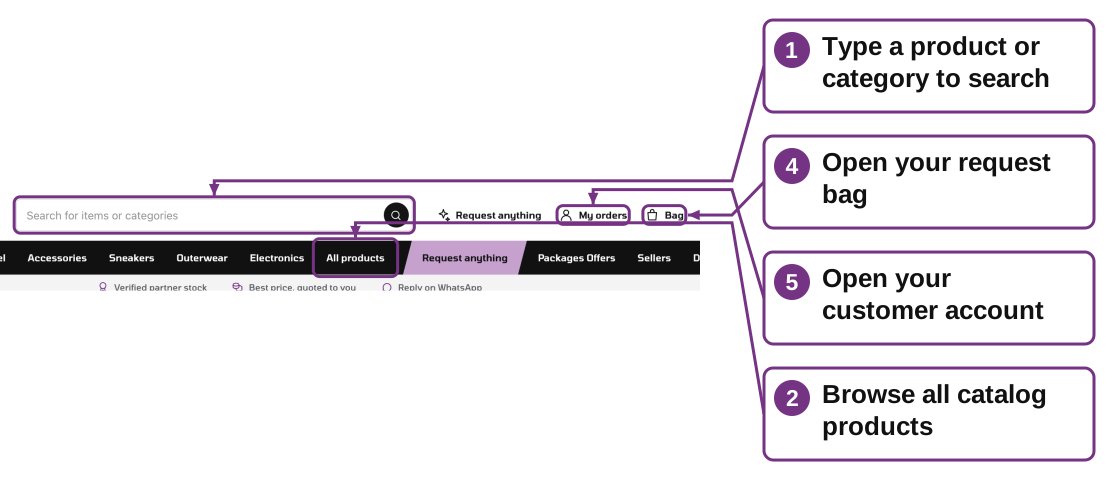
- Find items. Type an item or category in Search for items or categories, then press Enter or click the search button.
- Browse categories. Choose New in, a category, or All products. Use the available category/condition filters and sort.
- Open details. Click a product photo or name. Read condition, description and sizes before adding it.
- Open your bag. Click Bag in the top-right header. The count shows units in your request bag.
- Find your orders. Click Sign in or the account icon. After signing in, use My orders.
3. Start on a phone
The same functions fit into the phone header. Some labels become icons.
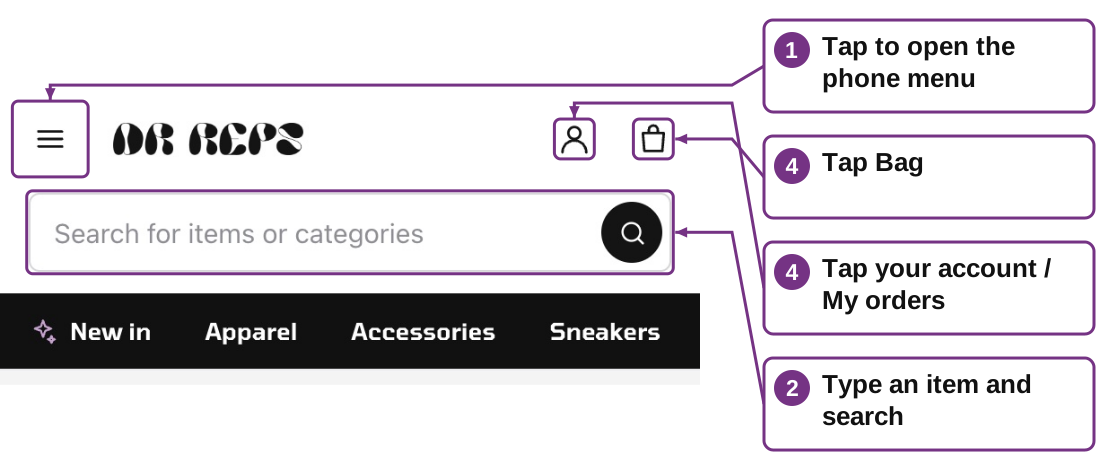
- Open the menu. Tap the three-line menu at the top-left for categories, All products, Request anything and account links.
- Search. Tap the search field below the logo, enter the item and tap the search button.
- Browse. Scroll down through products. Swipe horizontally along the category bar or product rails when needed.
- Bag and account. Tap the bag icon for your selected items; tap the person icon for Sign in or My orders.
- Return after WhatsApp. Switch back to the browser tab to see the order page. Your saved orders are also available after signing in on a computer.
4. Choose an item, size and quantity
The product detail page contains the selection controls. Adding an item requests a quote; it is not a payment.
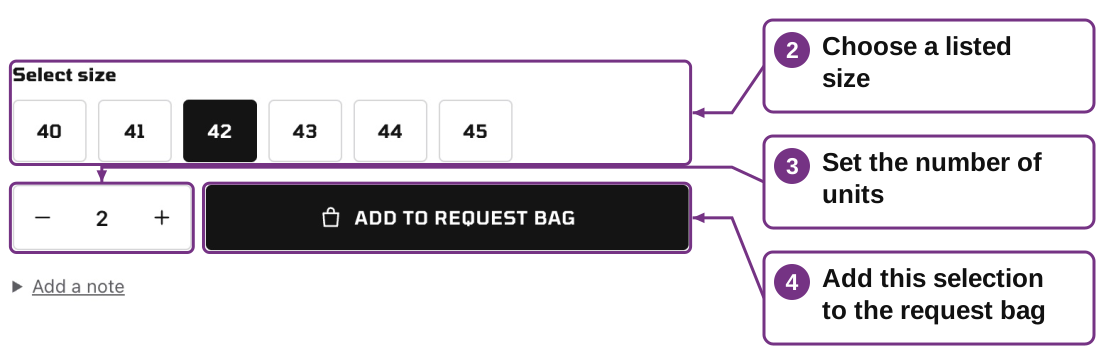

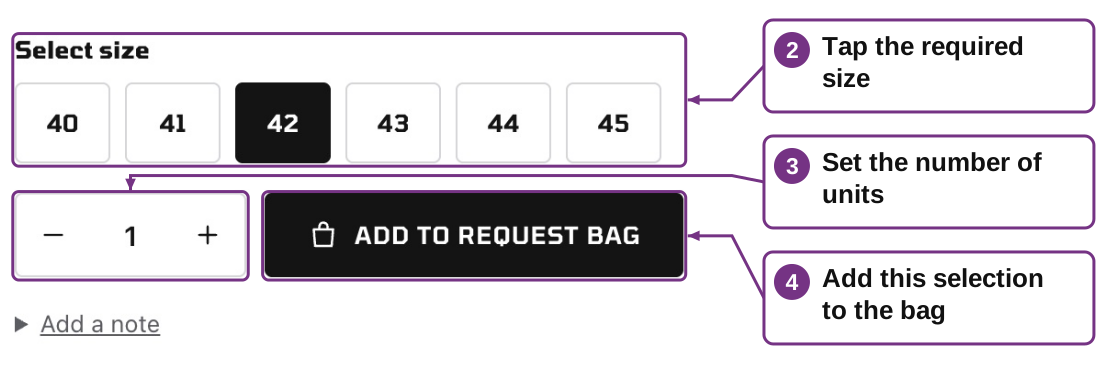
- Inspect. Click/tap gallery thumbnails and read Product details and How pricing works.
- Select size. Choose the listed size when the product has sizes. For different sizes, add separate selections.
- Set quantity. Use − / + or the quantity field. Open Add a note for colour or other relevant details.
- Add. Click Add to request bag. On a phone, the bottom Add to bag button submits the same selection.
- Ask directly if needed. Ask on WhatsApp lets you ask DR Reps about the item. That chat alone does not create a tracked order; use the bag/request flow to create one.
A product listing is not a stock reservation. DR Reps confirms availability, condition and the final quote.
Back to guide contents5. Browse Packages Offers on phone or computer
Packages Offers shows special fixed-price bundles separate from the ordinary price-on-request catalog.
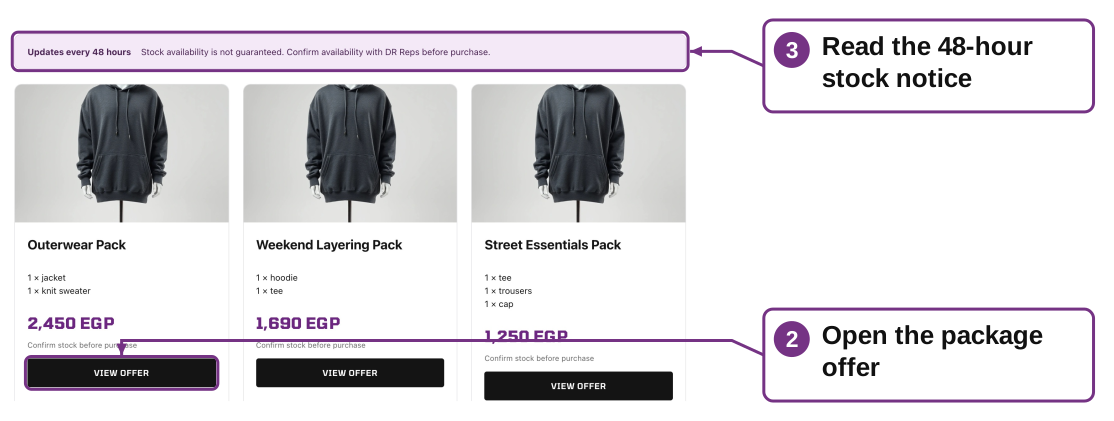
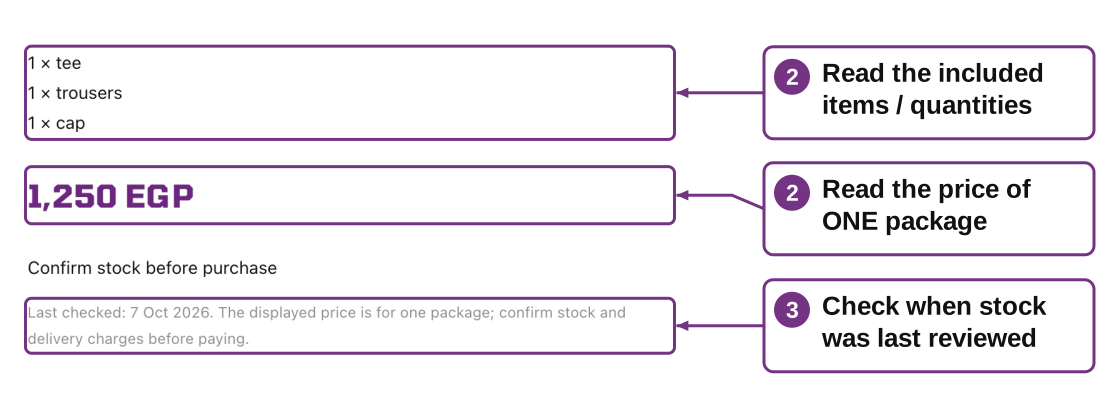
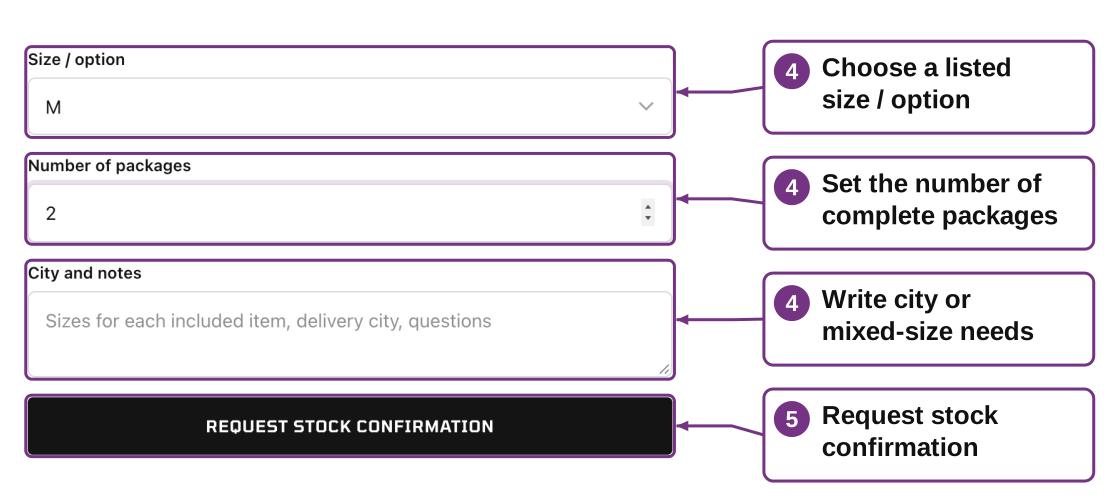
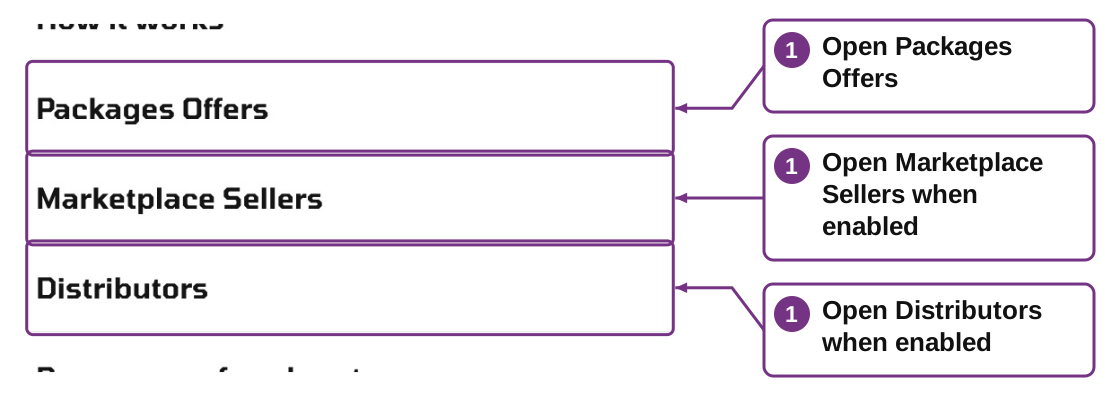
- Find offers. On a computer click Packages Offers in the category bar. On a phone use the menu; the home page also has View all packages.
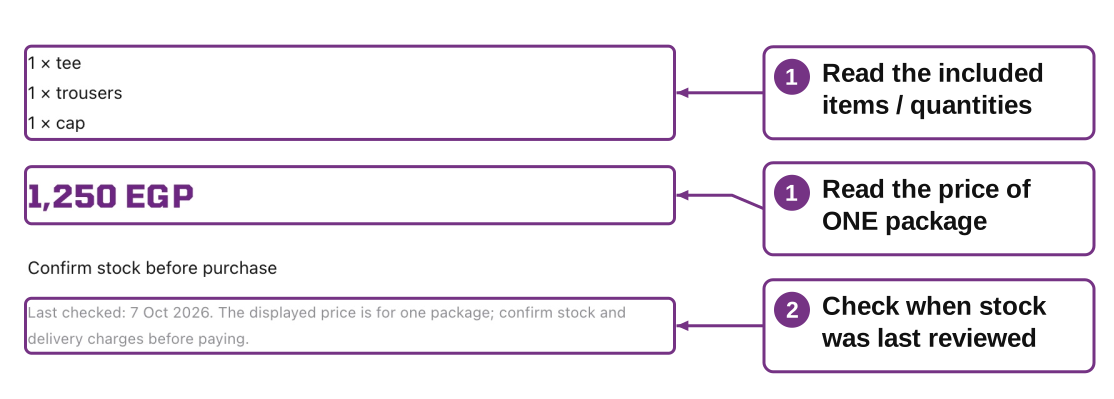
- Read what is included. Open View offer and check each included item/quantity, one-package price and the available size/options.
- Check stock wording. Read Updates every 48 hours and Last checked. Needs stock recheck means the recorded review is older than 48 hours.
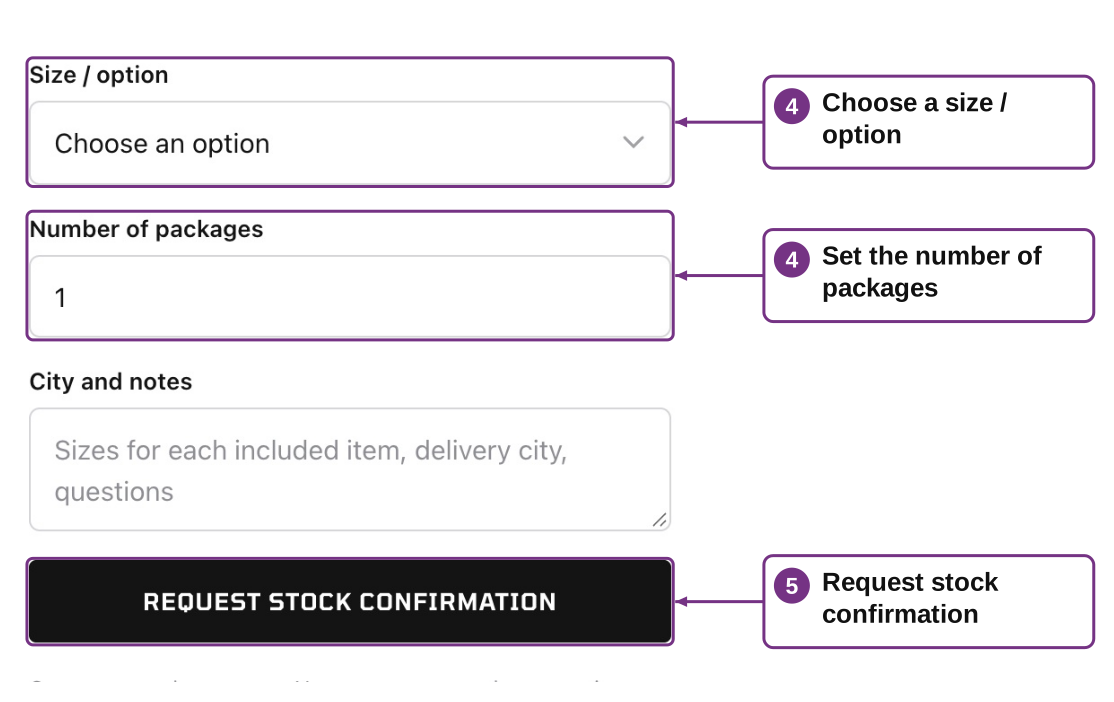
- Choose. Sign in, select a listed option, enter Number of packages and add city, mixed-size needs or questions in notes.
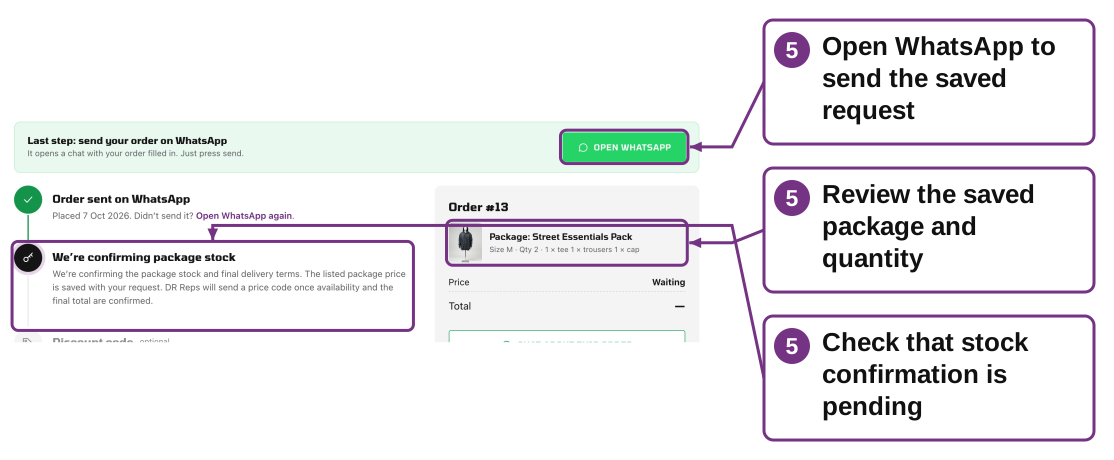
- Request. Tap Request stock confirmation. The order is saved; use Open WhatsApp and press Send to reach DR Reps.
Availability is not guaranteed. A stock-confirmation request does not reserve items or take payment. Confirm stock and delivery charges with DR Reps before paying.
Back to guide contents6. Complete a package order and handle changes
A saved package request appears in My orders. The owner confirms availability and the final quote through the normal order flow.
1. One package vs multiple
The displayed price is for one package. Quantity 2 means two complete bundles, not two single included items.
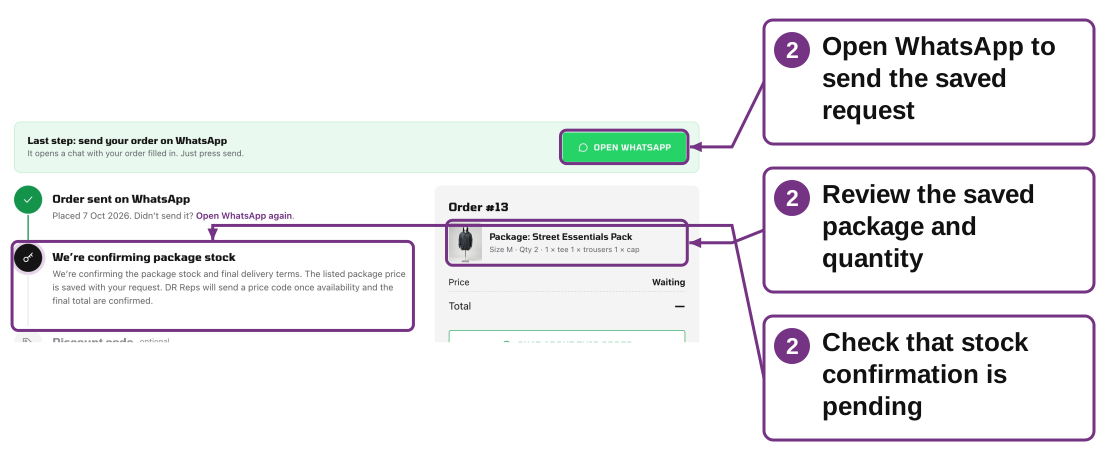
2. Waiting after submission
Confirming package stock is expected. DR Reps must confirm the items and final delivery charges, then send a price code.
3. Unlock and optional referral
Enter the current order price code. Apply a valid referral code if appropriate, then agree payment with DR Reps.
4. Unavailable button / removed offer
Choose a current alternative or contact DR Reps. An unavailable offer cannot accept a new request.
5. Mixed sizes or substitutions
Write exact needs in notes and confirm with DR Reps. Changes are not guaranteed by selecting one bundle option.
6. Price or contents changed later
Your submitted request retains the offer details at submission. Confirm the final quote with DR Reps; current catalog changes do not silently rewrite it.
7. Cancelled / refund needed
Contact DR Reps with the order number. Payment, delivery and any refund are handled by the store; the website has no automatic refund button.
7. Shop with independent Marketplace Sellers
When enabled by the owner, Sellers and Distributors list independent businesses across product categories. Their shop name and products belong to that merchant, unlike a hidden DR Reps referral partner.
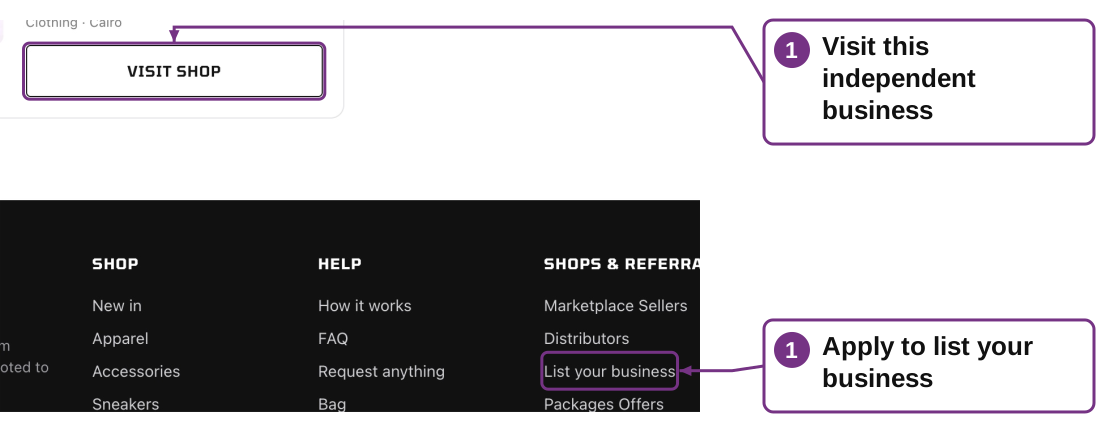
- Browse. Choose Sellers or Distributors on a computer, or use the phone menu. These links only appear when the owner has enabled the section. Open Visit shop on the store you want.
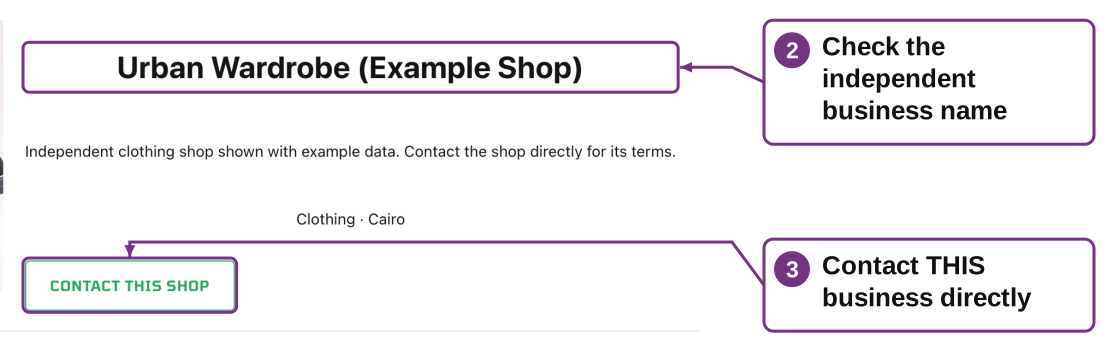
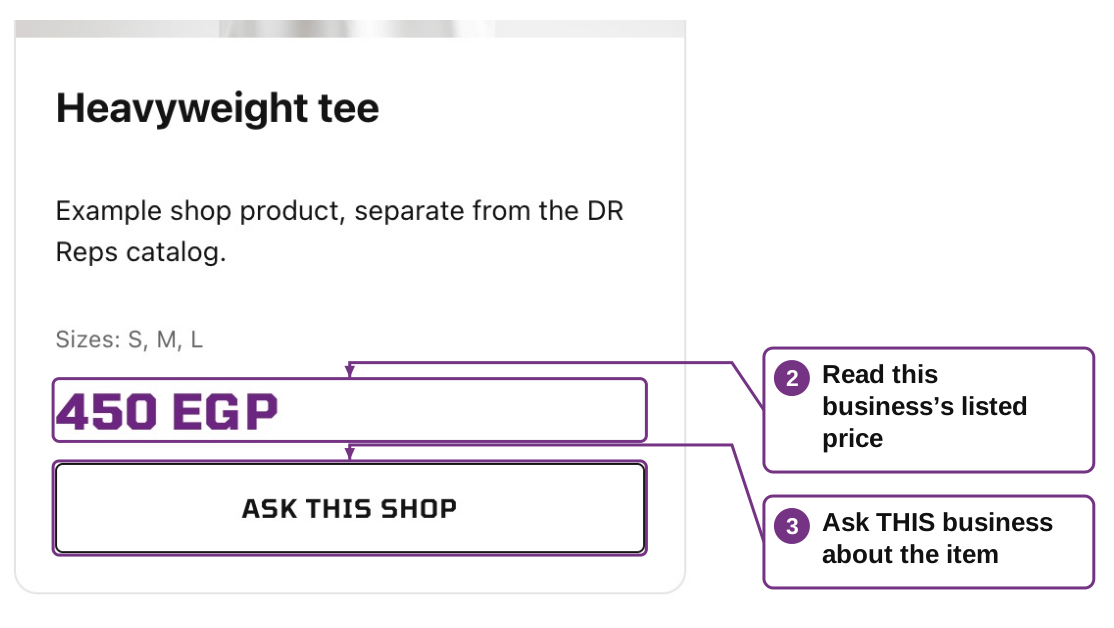
- Review. Read its description, city, category and listed products. A displayed price is a shop listing; ask the shop to confirm it and the size/stock.
- Contact directly. Click Contact this shop or Ask this shop to open its WhatsApp. Review the message and press Send. Website/Instagram/email links may also be available.
- Agree terms. Ask that merchant about payment, delivery and returns before buying. Direct shop enquiries do not become DR Reps account orders.
- Resolve issues. Contact the merchant about its order. Contact DR Reps if the listing itself is incorrect or the shop needs review.
DR Reps referral discounts and commission tracking do not apply to direct marketplace shop enquiries. This version has no shared marketplace checkout.
Back to guide contents8. Apply as a Seller or Distributor
When applications are enabled, use this form for an independent store or distributor in any product category.
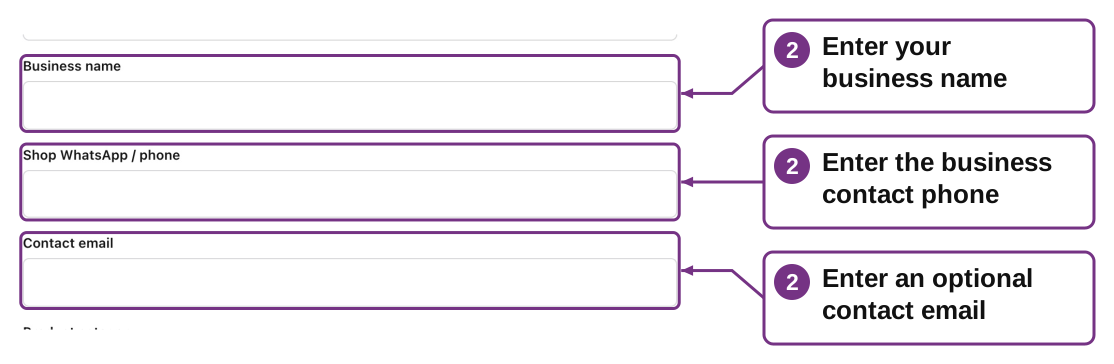
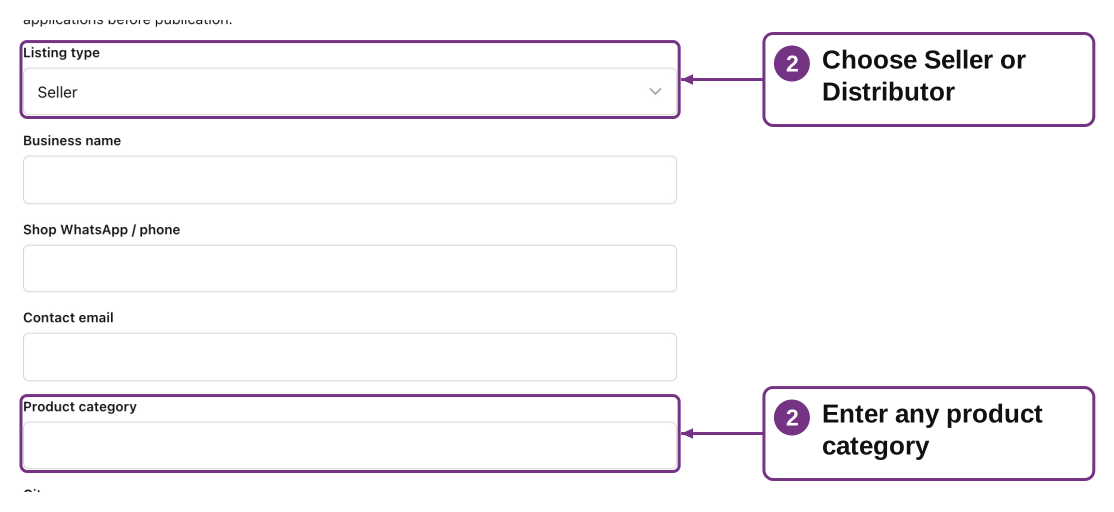
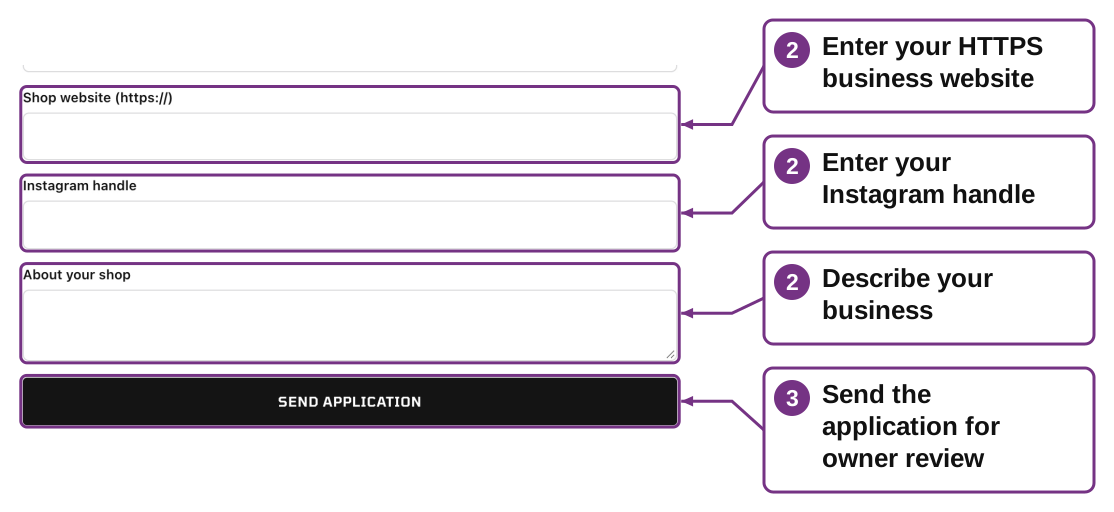
- Open the form. From Marketplace Sellers click List your business.
- Enter details. Provide shop name, phone with country code, optional contact email, listing type (Seller or Distributor), product category, city, HTTPS website, Instagram handle and shop description.
- Submit. Complete the human check if shown and click Send application once. The confirmation says Shop application received.
- Wait for review. DR Reps reviews and contacts you. Submission does not publish your shop or create a merchant login.
- After approval. Agree the listing details with DR Reps. The owner maintains the shop/products; send changes to the owner. A paused or rejected shop is not publicly listed.
A shop application is separate from a referral-partner application. Invalid contact data must be corrected; five applications from one IP per hour trigger a wait.
Back to guide contents9. Review and change your bag
Review your selected items before sending them to DR Reps.
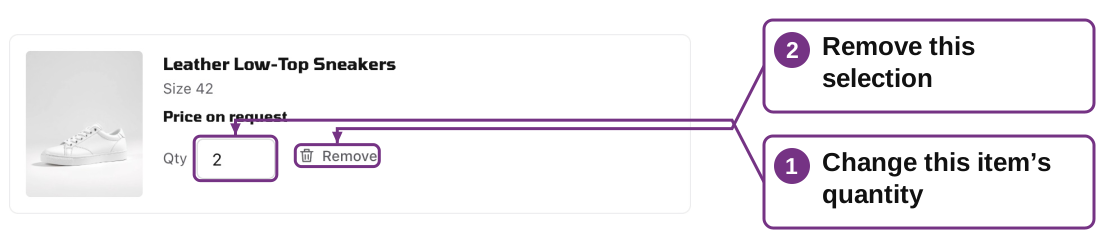
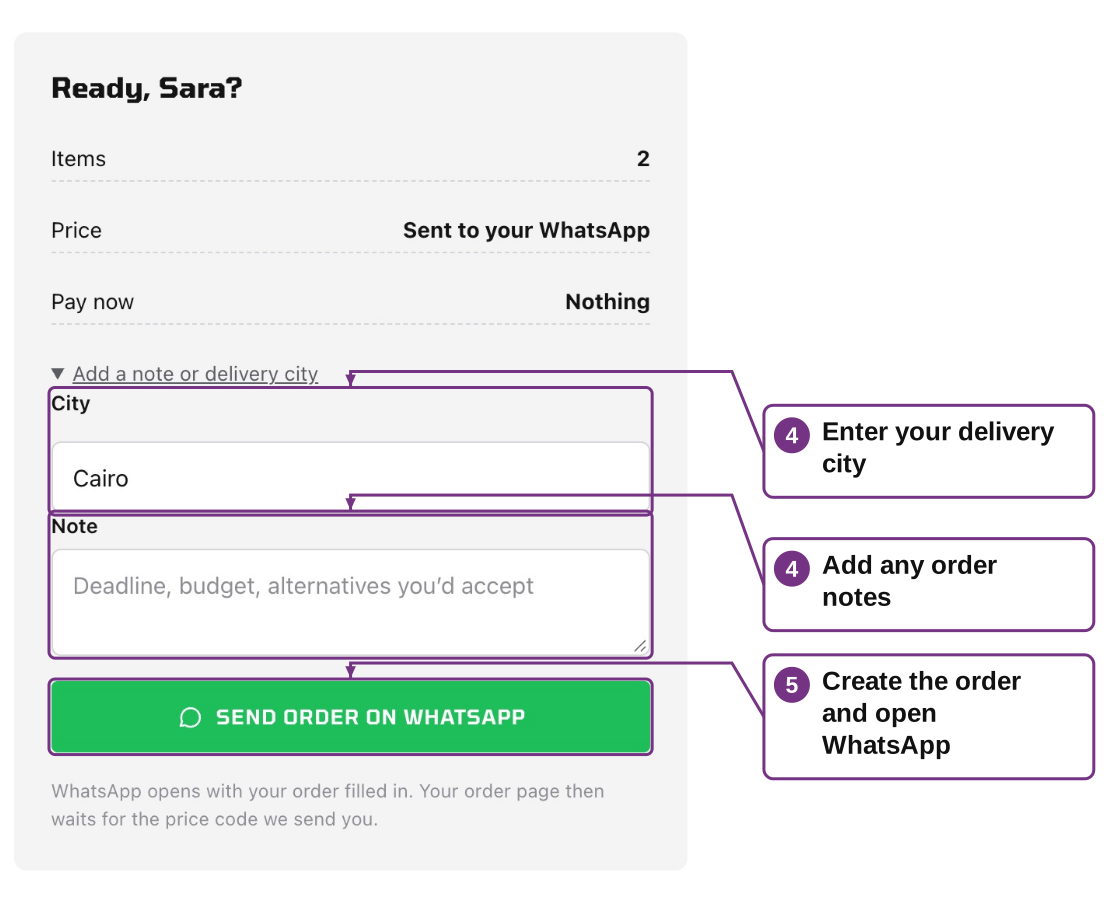
- Check each row. Confirm product, size, quantity and note. Change Qty to adjust units, or use Remove to delete a selection.
- Change a size. Remove the incorrect selection, return to the product and add the correct size.
- Add more. Click Continue shopping if you want other catalog items in the same request.
- Add delivery context. When signed in, open Add a note or delivery city for your city, deadline, budget or alternatives.
- Proceed. If signed out, choose Sign in or Create account. Then return to the bag and click Send order on WhatsApp.
The bag is stored in the current browser, so it may not follow you to another device or a private browsing window. Submitted account orders do follow your login.
Back to guide contents10. Create an account or sign in
One customer account holds your website orders. Use the WhatsApp number where DR Reps can reach you.
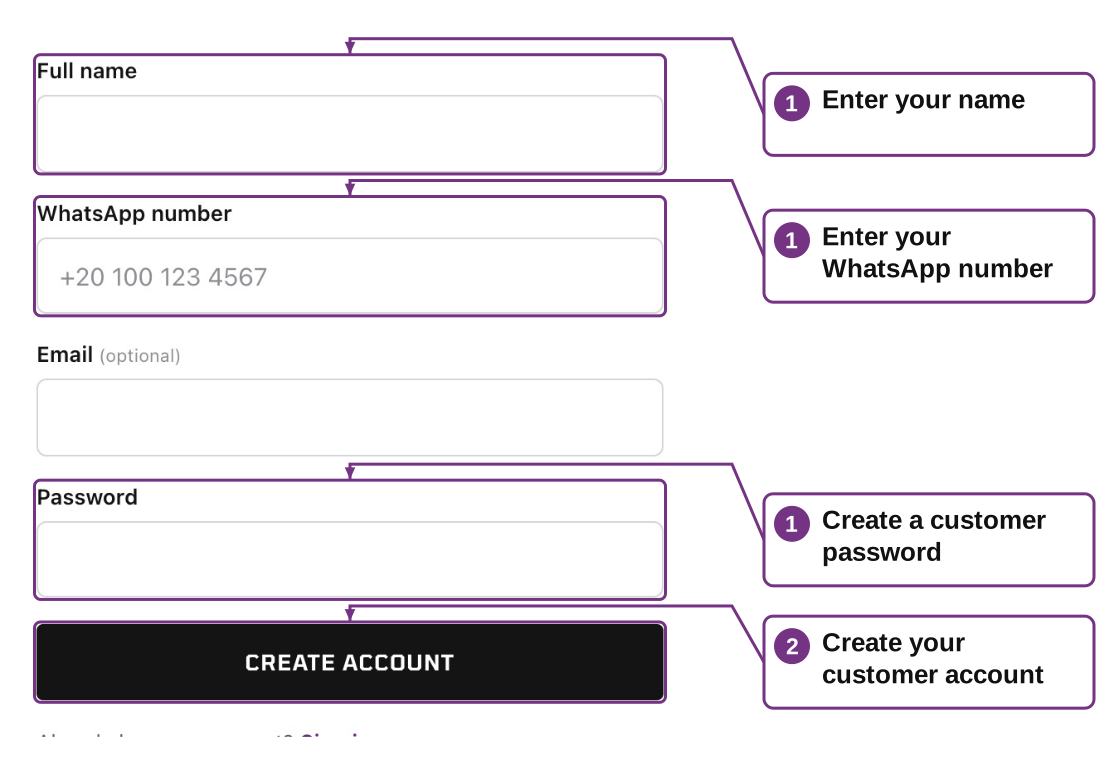
- Create account. Enter Full name, WhatsApp number with country code, optional Email and a password of at least 8 characters.
- Submit. Complete the human check if it appears, then click Create account. You return to the bag or request you were working on.
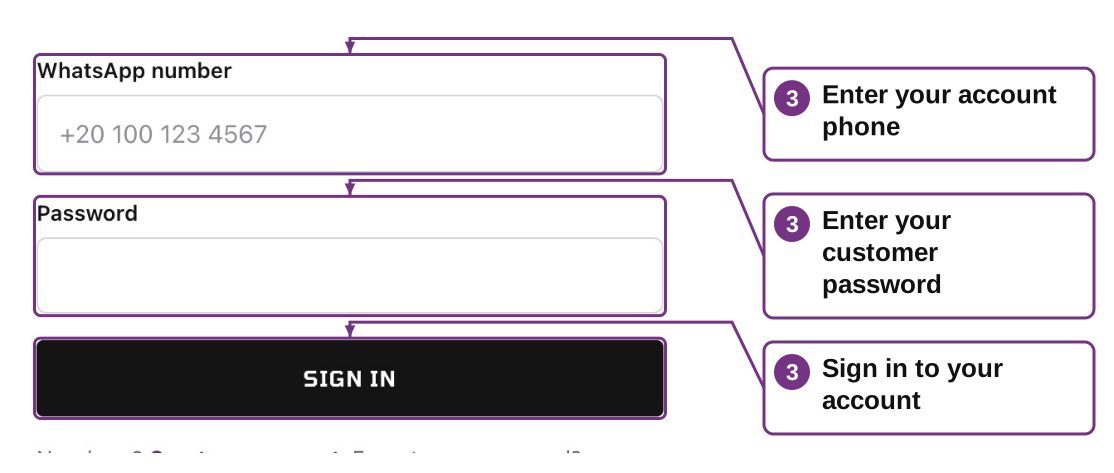
- Returning user. Choose Sign in and enter the same full WhatsApp number with country code and password.
- Number already registered. Sign in instead of creating another account. If you forgot the password, contact DR Reps on WhatsApp for a reset.
- Shared device. Use Sign out in My orders when finished. Keep your password private.
Account creation does not send the order. Return to the bag or request form and complete the send step.
Back to guide contents11. Request an item that is not listed
Request anything collects the item details in one form. Sign in first.
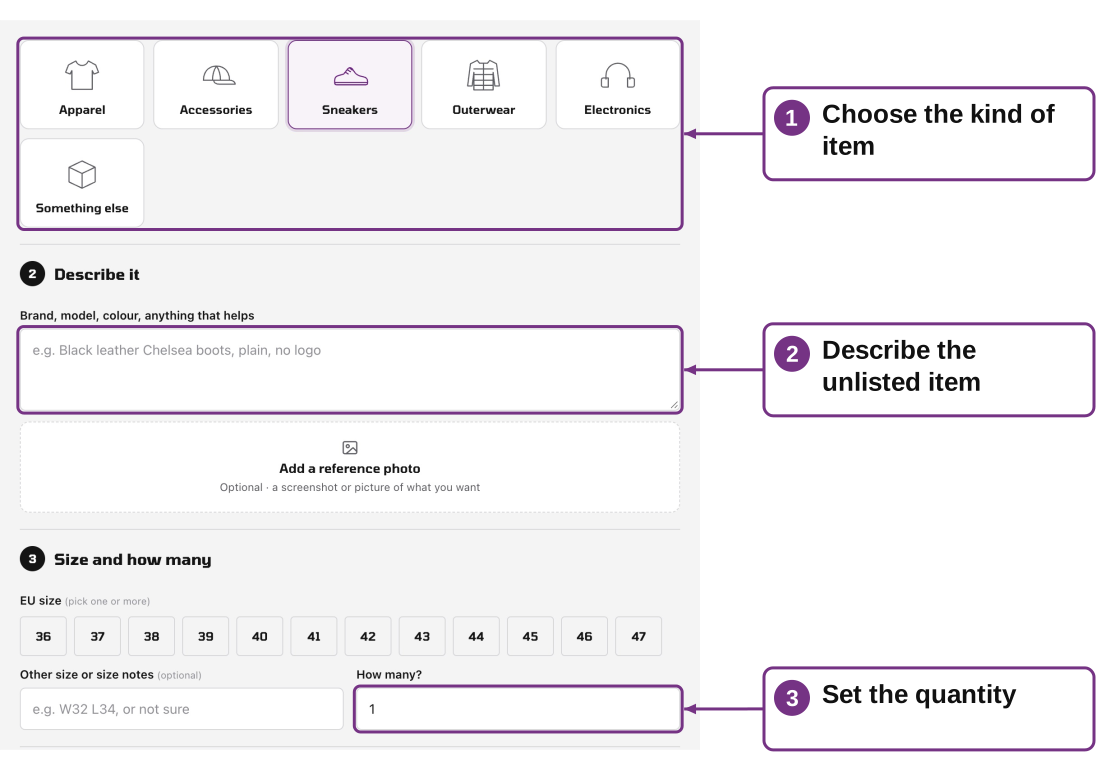
- Choose a kind. Select the item category, or Something else if it does not fit an available category.
- Describe it. Enter the model, brand, colour and useful details. Add an optional reference photo if you have one.
- Choose sizes and quantity. Select one or more relevant sizes, add Other size or size notes if needed, and enter How many.
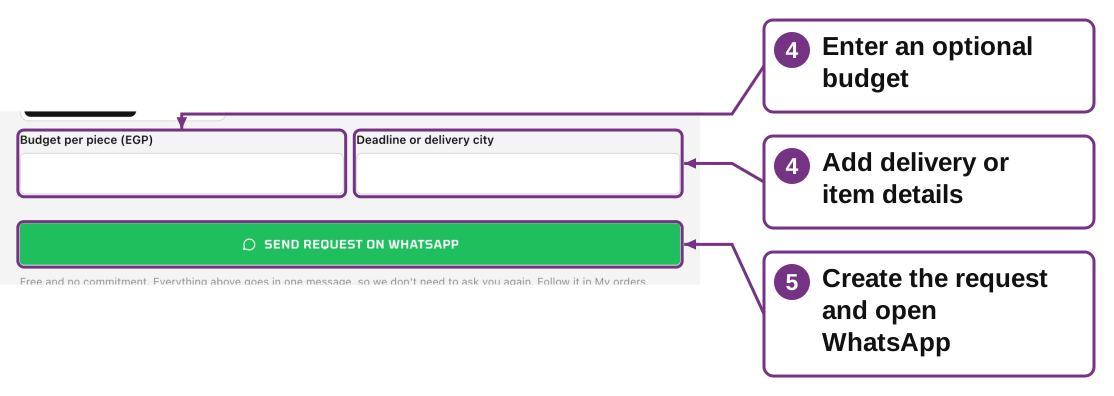
- Add preferences. Choose Any condition or New only; enter optional Budget per piece and Deadline or delivery city. Explain size/quantity splits in the description.
- Send. Click Send request on WhatsApp, then press Send in WhatsApp. Return to My orders to track the request.
Reference photos must be JPG, PNG, WEBP or GIF, up to 5 MB. Sourcing depends on availability; an unlisted-item request is not a guarantee.
Back to guide contents12. Send the WhatsApp message
Two actions are needed: create the website order, then send its prepared WhatsApp message.
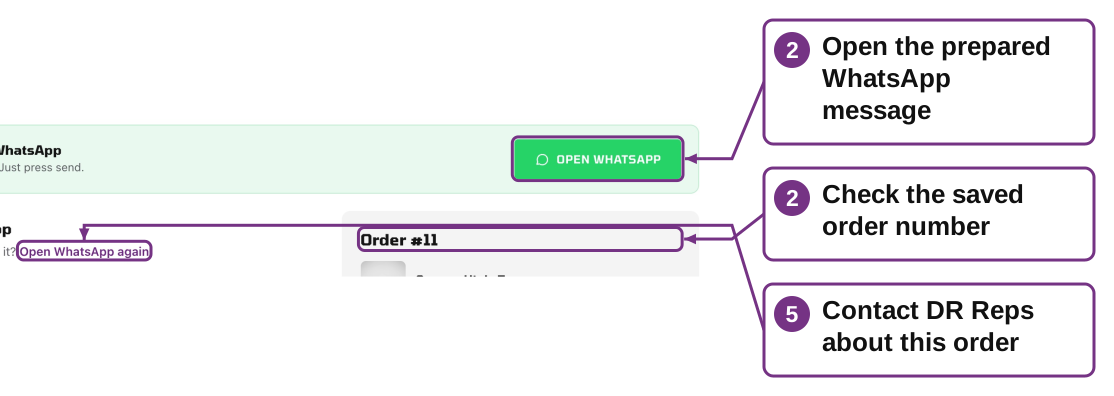
- Create. From the signed-in bag or request form, press the WhatsApp send button once and wait for the order page.
- Send in WhatsApp. Review the store recipient, item details and order number, then press the WhatsApp Send button.
- On a phone. WhatsApp may open as an app. Return to the browser afterwards to see your order.
- On a computer. Use WhatsApp Web/Desktop or complete the chat on your phone. The website does not press Send for you.
- If blocked or closed. Use Open WhatsApp / Open WhatsApp again on that order page. You can resend the message for the existing order without creating another.
The order may exist even if WhatsApp did not open or the message was not sent. Check My orders before retrying the request form.
Back to guide contents13. Open your order and unlock the price
You can close the browser and come back. Sign in and open the matching order from My orders.
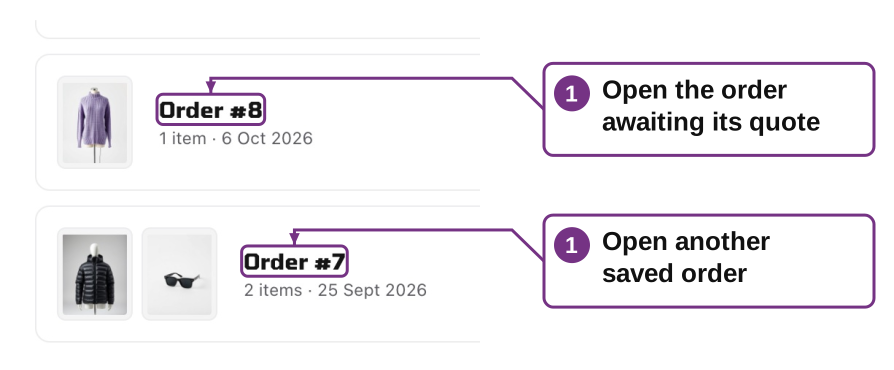
- Open the order. Open the matching order in My orders. Finding your price means DR Reps is sourcing it. The site usually states one to two working days; contact the store if you need an update.
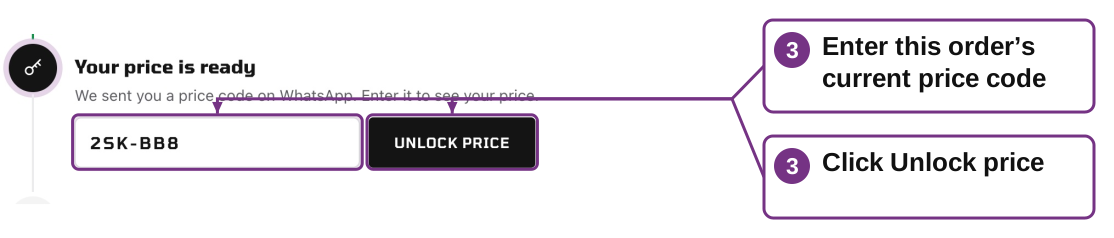
- Receive the code. DR Reps sends a price code on WhatsApp. Confirm the order number in that message.
- Unlock. Type the price code into Price code and click Unlock price. Upper/lower case and the dash are not significant.
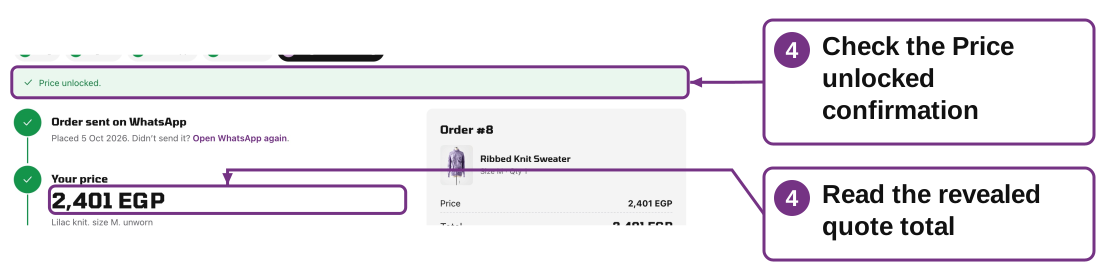
- Review. Read the total price and quote details. Unlocking does not accept the quote or pay for the order.
- If it fails. Check the latest message and correct order. A changed price has a new code, so an older code may no longer work.
A price code is different from a referral/discount code such as AHMED01. Use each code in its own field.
Back to guide contents14. Apply an optional discount code
The discount field appears once the price is unlocked and before payment is recorded as Paid.
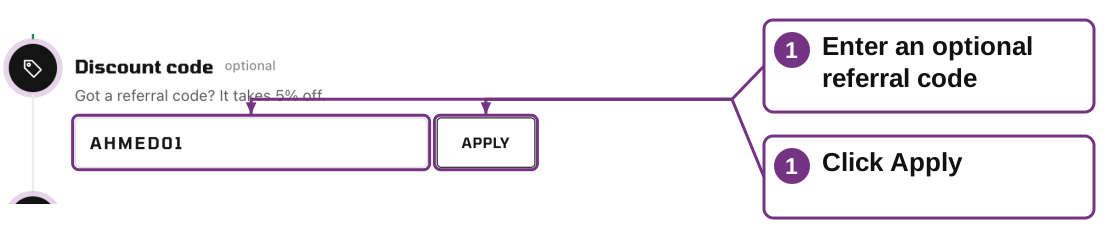
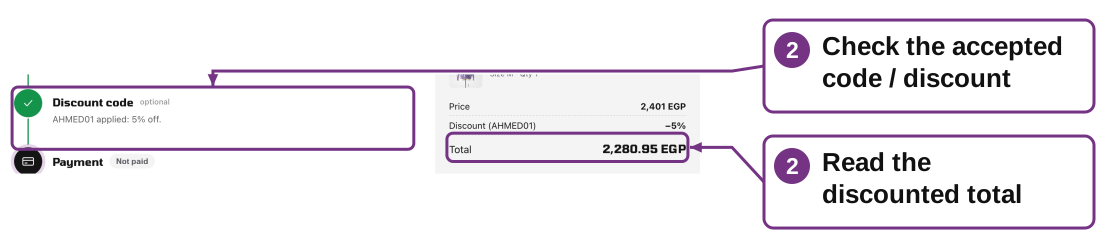
- Enter a valid code. Type the referral/discount code into Discount code and tap Apply.
- Check confirmation. Look for the applied code, discount percentage and updated total. A prefilled code is not applied until you press Apply.
- Understand the amount. DR Reps chooses the discount percentage. At 0%, the code can attribute a referral without changing the price.
- One current code. The order holds one current discount/referral code. A different accepted code replaces attribution for that order; codes do not stack.
- After payment. The discount field closes after payment. Ask DR Reps about any correction; there is no automatic retroactive discount.
Invalid or paused codes are rejected. You can proceed without a code; it is optional.
Back to guide contents15. Accept the quote and arrange payment
Read the quote, optional discount and payment instructions before agreeing to buy.
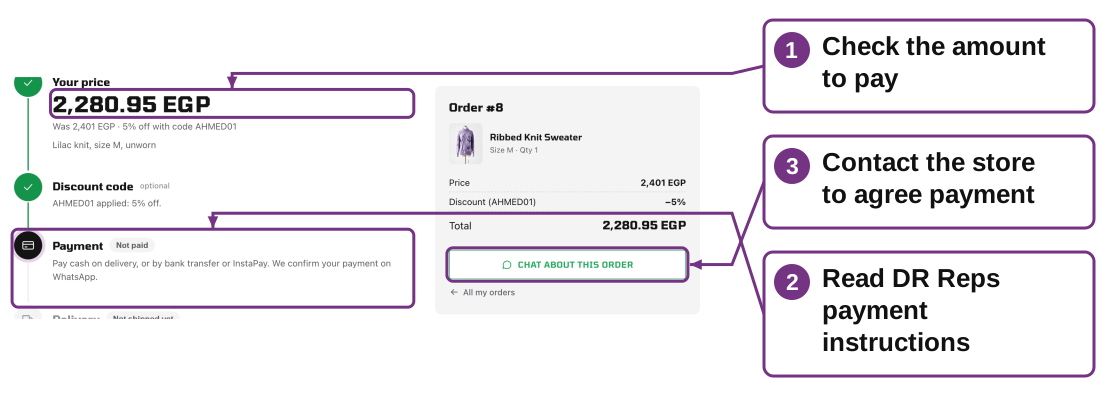
- Confirm terms. Contact DR Reps using Chat about this order. Confirm items, condition, size, quantity, delivery cost and timing.
- Pay as instructed. Use only the method agreed with DR Reps and shown in the order’s payment instructions. The website has no online checkout payment button.
- Confirm with the store. Send the requested payment confirmation/details through the store’s contact channel.
- Check status. Payment shows Not paid until DR Reps records receipt. A delay in the status is a reason to ask the store, not to pay twice.
- If you decline. Tell DR Reps before paying. Ask for alternatives or cancellation handling.
16. Follow delivery and report an issue
The order page shows the delivery stage recorded by DR Reps.
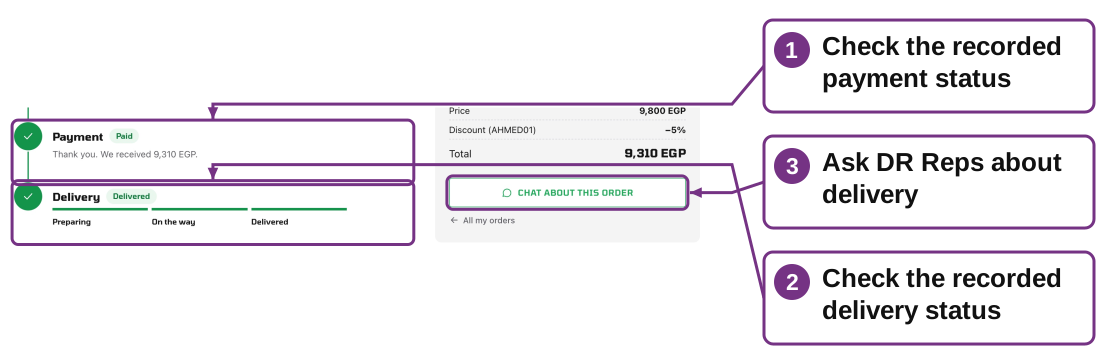
- Check payment. Read the payment status recorded by DR Reps. If it has not updated after payment, ask the store before paying again.
- Check delivery. Read the recorded delivery stage. Preparing, On the way and Delivered reflect updates saved by DR Reps.
- Contact the store. Use Chat about this order for tracking questions, missing items or delivery issues. Include the order number.
Not shipped yet
The store has not recorded preparation/shipping. Confirm payment and expected timing if needed.
Preparing
The store is preparing the order. Ask DR Reps about address corrections or urgency.
On the way
The order is marked shipped. Ask DR Reps for courier/tracking details; the site does not show an automated live courier map.
Delivered
Check the received item against the agreed quote. Contact DR Reps promptly if something is missing, wrong or damaged.
Payment = Refunded
The store has recorded a refund status. Confirm amount, method and timing directly with DR Reps.
Tracking looks stale
Refresh/reopen the order and ask the store for an update. The customer cannot edit delivery status.
17. Reorder, switch devices or amend a request
My orders is your saved website order history after signing in.
- Switch phone / computer. Sign in with the same full WhatsApp number including country code and password. Open the same order to see its price, payment and delivery.
- Place another request. Return to the shop and build a new bag, or submit Request anything again. Each submission creates a new order.
- Do not assume an old quote. A repeat order is sourced and quoted again. Availability and price may change.
- Amend a submitted order. Message DR Reps with the order number and requested change. There is no self-service edit of the submitted items.
- Order entered by a partner. If a referral partner logged the enquiry for you, ask DR Reps for updates. That enquiry may not appear in your website My orders account.
18. Unavailable items, cancellations and returns
Contact DR Reps about the specific order. The website does not have self-service cancellation or returns buttons.
Not available / We couldn’t find this one
Ask DR Reps for alternatives, another size or a later sourcing attempt.
Want to cancel before paying
Tell DR Reps the order number and that you do not want to proceed.
Want to change size or quantity
Ask the store to confirm the amended terms and any new quote/code before paying.
Paid but want to cancel
Contact the store for the applicable cancellation and refund terms. A request does not itself create a refund.
Wrong, damaged or incomplete item
Keep the order number and clear photos; contact DR Reps for the agreed resolution.
Return / exchange / warranty question
Ask DR Reps to confirm the applicable policy for the quoted item before purchasing. The guide does not invent a policy or deadline.
19. Account, bag and submission problems
Empty bag
Add items from the shop, or use Request anything. An empty bag cannot be sent.
Bag disappeared on another device
The unsent bag belongs to that browser. Return to the original browser or rebuild it; saved account orders remain in My orders.
Too many bag selections
The bag allows 25 different item/size selections. Send a request, then start another if needed.
Product is no longer available
Remove it or ask DR Reps through Request anything. Hidden/deleted products cannot be newly added.
Wrong password / account exists
Use Sign in for an existing number; contact DR Reps for a reset. Repeated wrong login attempts require a 15-minute wait.
Request did not seem to finish
Check My orders and your WhatsApp message first. If an order exists, reuse its WhatsApp link rather than submitting a duplicate.
20. Codes, uploads and other error cases
Wrong price code
Use the latest price code for this order, not the referral code. Eight price-code attempts per hour trigger a wait.
Too many discount attempts
Wait an hour or contact DR Reps. Ten discount attempts per connection per hour trigger the limit.
Too many orders
Wait or contact DR Reps on WhatsApp. The account is limited to 12 order submissions per hour.
Photo will not upload
Use JPG/PNG/WEBP/GIF below 5 MB, check your connection and retry. You can describe the item without a photo.
Discount not available yet / already paid
Unlock the price first. Apply the optional code before payment is recorded as Paid.
Cannot see someone else’s order
Order pages require the account that placed the website order. Sign in to your own account and use My orders.
21. Complete example: phone to computer
Example only: amounts and items are not a live offer.
- Phone: choose. Open a sneaker page, choose size 42 and quantity 2, then tap Add to request bag.
- Phone: submit. Open Bag, sign in, add your city and send the order. Press Send inside WhatsApp.
- Computer: unlock. Later, sign in to the same account, open the order and enter the price code DR Reps sent.
- Optional code. If the quote is 1,000 and the configured code discount is 5%, Apply changes the total to 950. Confirm that on the screen.
- Finish. Agree payment with DR Reps. Reopen the order to follow Paid, Preparing, On the way and Delivered. Contact the store with the order number for any issue.